
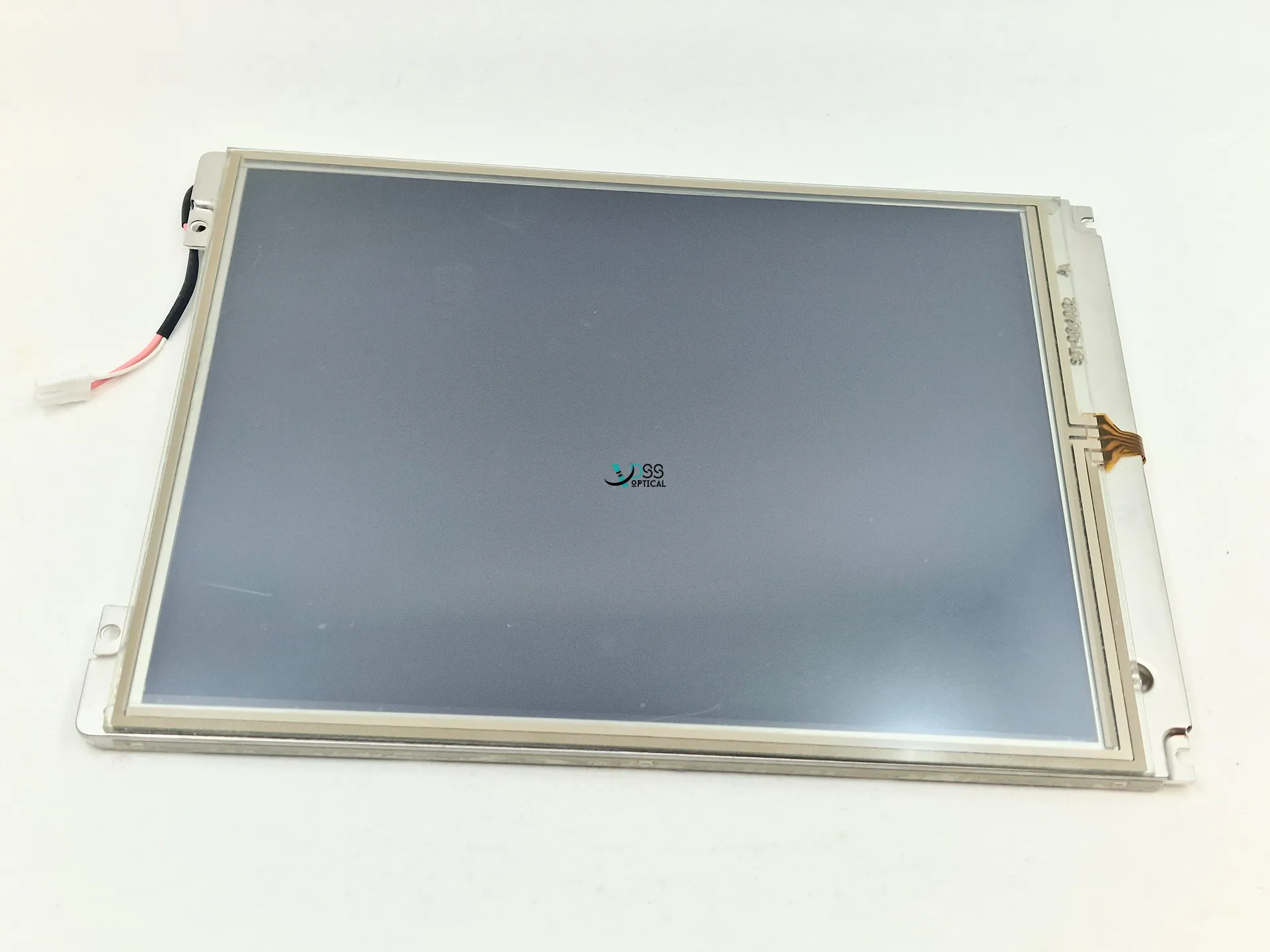
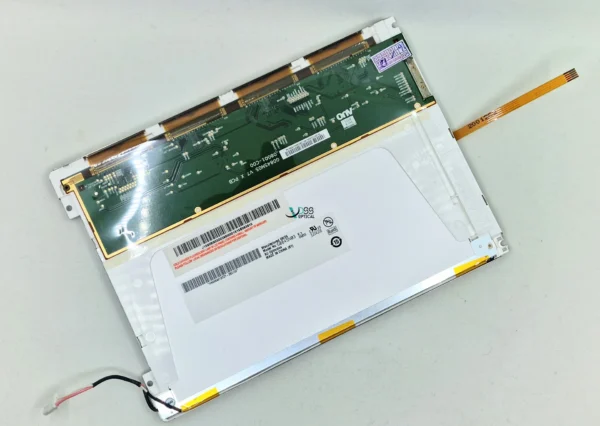
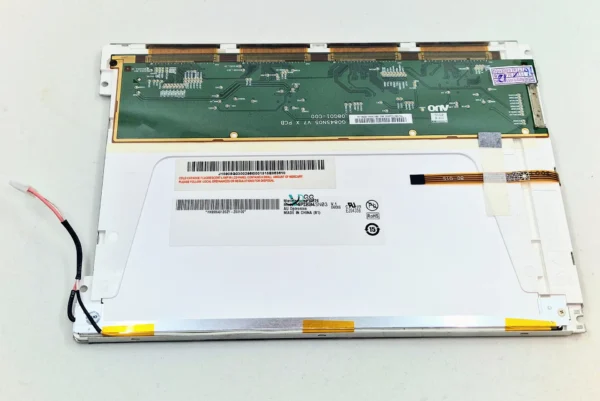
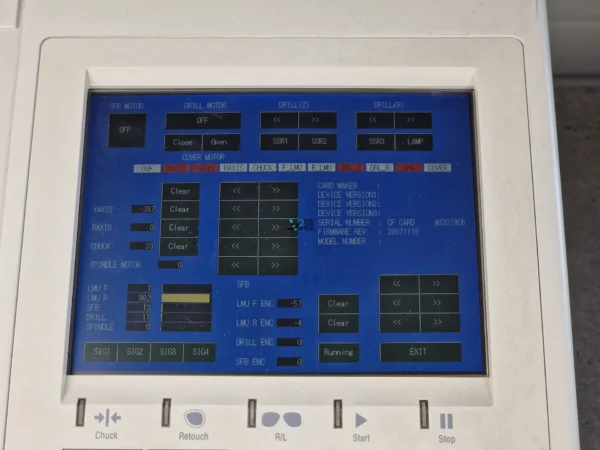
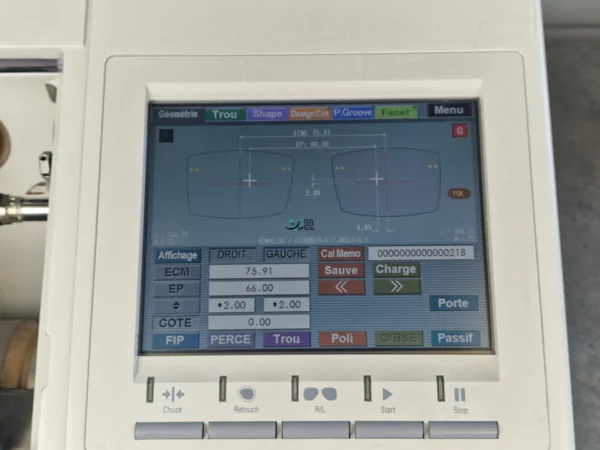
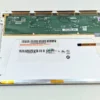
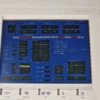
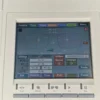
Brand New LCD Touch Screen for Nidek ME-1000 & ICE-9000 (OEM 42203-E016)
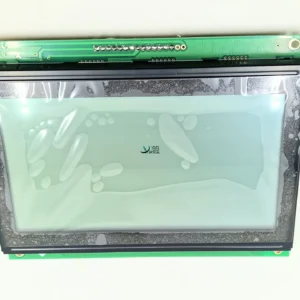
Restore the precision and responsiveness of your optical workshop equipment with this premium, 100% brand new LCD display assembly with an integrated touch panel.
Specially manufactured to meet or exceed original factory standards, this replacement screen ensures crystal-clear visibility and flawless tactile accuracy for your daily lens finishing operations. No more unresponsive zones or dead pixels—get your machines back to peak performance instantly.
Key Features
- 100% Brand New: Not refurbished, not pulled from used machines. This is a pristine, factory-fresh component ensuring maximum lifespan and reliability.
- High-Sensitivity Touch Panel: Features a highly responsive digitizer for precise input, essential for accurate layout and edging adjustments.
- Plug-and-Play Compatibility: Engineered for a perfect mechanical and electronic fit, making the installation process smooth and straightforward.
Complete Compatibility List
This premium replacement screen is fully compatible with the following Nidek optical laboratory equipment:
- Nidek ME-1000 (Automatic Lens Edger)
- Nidek ME-1000 Design+ (Automatic Lens Edger)
- Nidek ICE-9000 (Intelligent Blocker)
Technical Specifications
| Feature | Specification |
|---|---|
| Condition | 100% Brand New |
| Component Type | LCD Display with Touch Screen Digitizer |
| OEM Part Number | 42203-E016 |
| Application | Optical Lab Equipment Spare Part |
Installation & Touch Screen Calibration Guide
After installing your new screen, you must perform a quick calibration procedure to ensure perfect alignment and touch responsiveness. Please follow the instructions below for your specific Nidek device:
1. NIDEK ME-1000 / ME-1000 Design+ (Lens Edger)
- Power On: Turn on the machine while holding down the [R/L] key on the control panel.
- Calibration Start: A crosshair mark will appear in the upper-left corner of the screen.
- Validation Steps:
- Press and hold the center of the crosshair using the touch pen (stylus).
- The crosshair will then appear successively in all four corners of the screen. Tap each crosshair accurately as it displays.
- Finalization: Once all four corners have been validated, press the [START] button to complete the procedure and save the calibration settings.
2. NIDEK ICE-9000 (Intelligent Blocker)
- Power On: Press and hold the physical BLOCK button while switching on the main power supply switch.
- Calibration Start: The color LCD module calibration screen will automatically open.
- Validation Steps:
- A red crosshair will appear in the upper-left corner. Tap precisely in the center of this crosshair using the tip of the stylus or a small cable tie (type T-18R).
- As soon as the system registers the touch, the red crosshair moves to the upper-right corner. Tap the center again.
- Repeat this process for the crosshair that displays in the lower-left corner, and finally in the lower-right corner.
- Finalization: After validating all four points, the system initialization will start automatically. The device will reboot to the title screen and then return to the standard Layout screen.
Note to Lab Technicians: Replacing a worn-out or broken touch screen is a cost-effective way to extend the life of your high-end Nidek edgers and blockers without investing in entirely new machinery. Ensure your workshop maintains its continuous workflow with this brand-new, reliable component.
Reviews
There are no reviews yet.